Pick the size around the real user task
Pick a 21.5-inch format when the interface needs room for instructions, selections, forms or diagrams at an operator station or information point. It remains a monitor, not an all-in-one computer: the customer supplies the host, operating system and application. For a compact enclosure or short reach distance, compare the 15.6-inch touch monitor. Mock up the real task and place primary controls where a standing user can read and reach them without covering key feedback. The capacitive monitor category can help frame the comparison, but final fit still depends on the mock-up.
Treat the monitor as an indoor component. It does not by itself make an outdoor display, payment terminal or protected public kiosk. Review ambient light, glazing, cleaning, cable entry and service access as enclosure decisions. For a self-service process, map the full user journey, including error recovery and staff intervention, before choosing the display.
Verify panel and touch behaviour with real content
The product page identifies a 1920 × 1080 BOE A+ IPS panel and ten-point capacitive touch. Confirm the offered panel and touch controller in the quotation rather than relying on a category description. Load representative screens at the intended viewing distance: small labels, numerals, buttons, charts and photographs. More diagonal room helps only when interface density, viewing angle and glare are controlled.
The published response time of below 6 ms describes touch response, not total system latency. End-to-end behaviour depends on the host, operating system, application, connection path and adapters. Test tap, drag, swipe, pinch or rotation that the workflow requires, and record which multi-touch actions your software actually exposes. Approve the display inside the enclosure, not from a desk test alone.
Lock down host, signal and audio connections
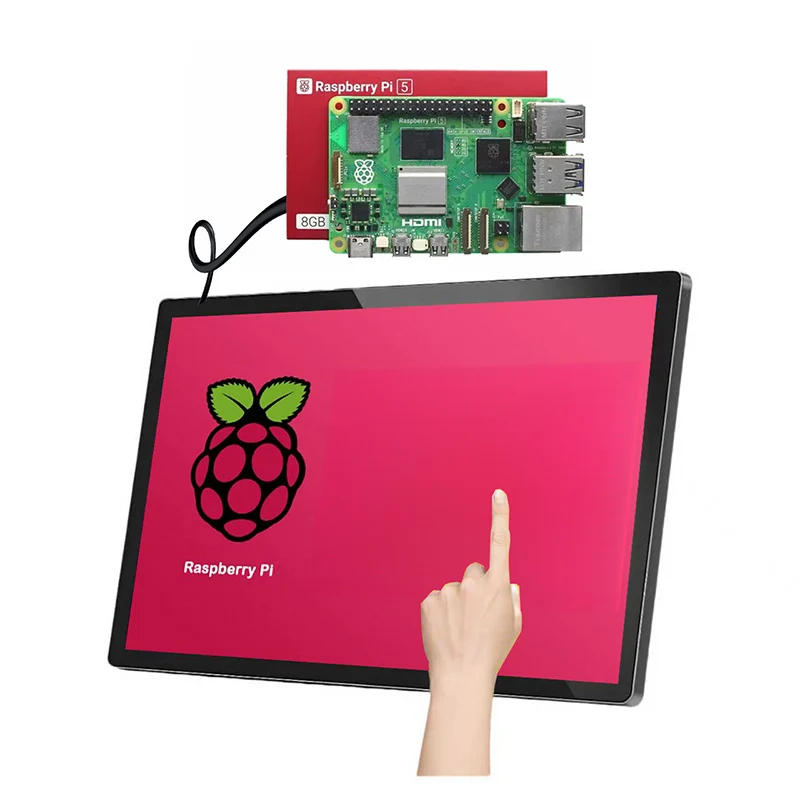
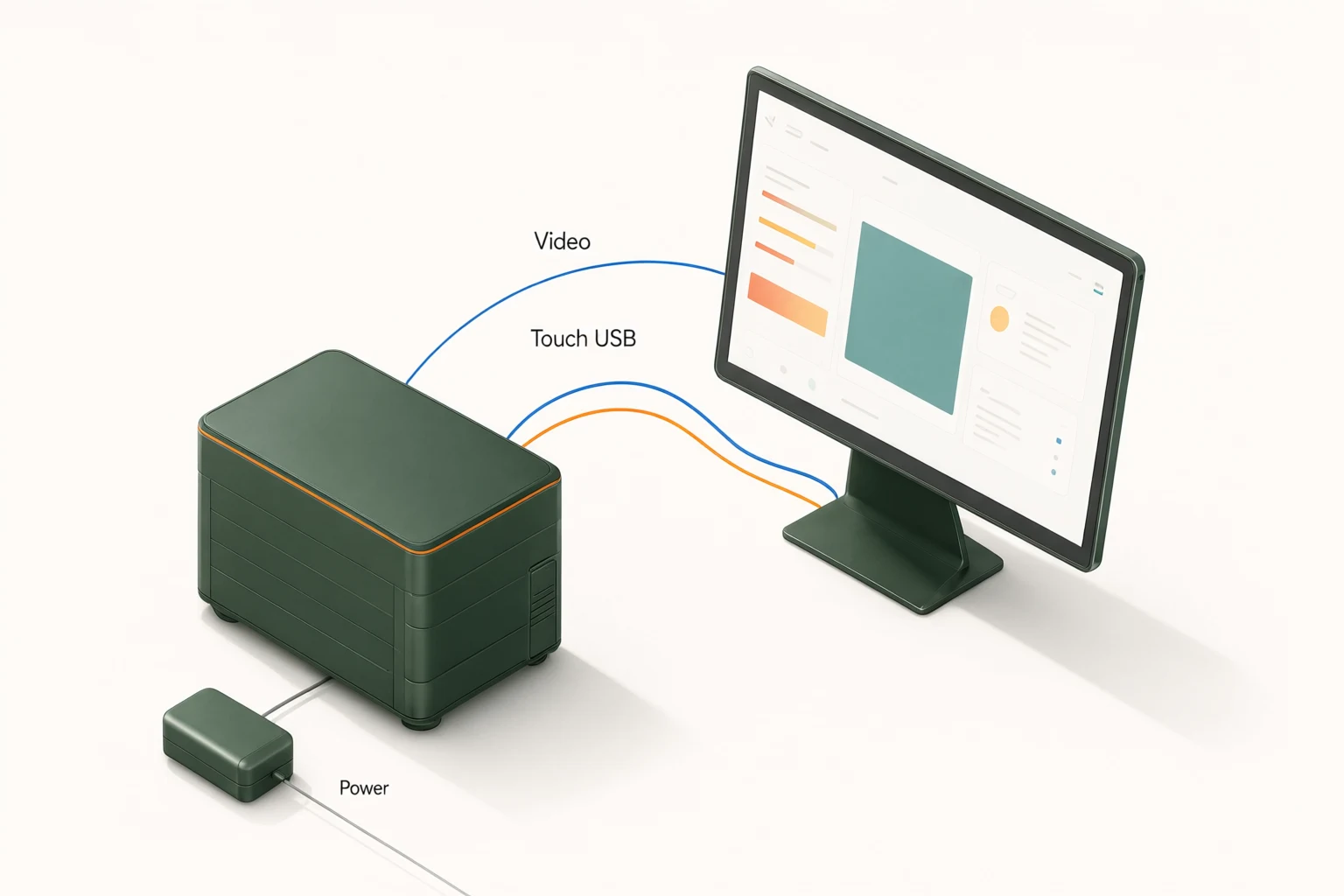
Use this monitor with an external host or player box. The page states Android, Windows and Linux support and lists HDMI, VGA, USB and audio in/out with built-in speakers. Provide the exact host model, operating-system version and video output in the RFQ, then ask Alihh to confirm the matching port set. Do not assume DisplayPort or DVI is fitted; make any extra port requirement explicit and obtain written confirmation before freezing the host design.
Test the complete chain: host, adapters, cables, touch USB, audio and any hub or extension. Check power-up order, resolution negotiation, touch recognition and audio output under site settings. Keep any third-party host compatibility statement separate from the monitor quotation. A connector list does not prove performance for every installed application. Record cable lengths and connector orientation too, because a short lead or right-angle plug can change the enclosure design.
Engineer the mount, enclosure and service plan
The metal frame and VESA-compatible mounting are starting points, not a substitute for the exact unit drawing. Request dimensions, weight, fixing pattern, connector positions and included hardware. Confirm screw depth and clearance before making a bracket or housing. For a public installation, check approach space, screen angle, reach and cable routing with the enclosure designer. The monitor alone does not establish accessibility, ingress protection or impact resistance for the assembled terminal.
Leave a practical route for service and replacement. The enclosure should allow access to connectors, fasteners and controls without disturbing finished trim. Plan strain relief, bend radius and power separation before fabrication. Review application requirements with the system owner, and treat dust, water, high glare or unsupervised use as project conditions for confirmation.
Turn the system brief into a quotable, testable package
An accurate quotation needs more than a screen size. Send the intended use, host model and OS version, required ports, orientation, mounting or enclosure drawing, cable plan, quantity, destination and any branding or mechanical change to assess under OEM/ODM. State whether the sample must include customer software, media, network and peripherals. Ask for an itemized line covering the monitor, touch controller, accessories, speakers, documentation and support scope.
Define acceptance before the pilot. Record the serial-numbered sample, host, software build, cables, adapters and settings used for approval, plus tests for touch targets, readability, audio and repeated start-up. The quotation should separate standard items, options and items needing written engineering confirmation. Confirm warranty and service terms in the offer rather than inferring them from a web page. Send the system brief to Alihh with the mechanical drawing and acceptance checklist so the factory can quote a reviewable configuration.
Frequently asked questions
Does the monitor include a computer?
No. It is a display and touch component intended for an external host or player box. Provide the host model and operating-system version so the quotation and sample test cover the actual configuration.
Is DisplayPort included?
The listed connections are HDMI, VGA, USB and audio in/out. If your host requires DisplayPort or DVI, state it as a quotation requirement and obtain written confirmation for the offered configuration.
Does below 6 ms response mean the whole application is that fast?
No. The published figure relates to touch response. Application latency also depends on the host, software, connection path and adapters. Test the complete system under the intended settings before acceptance.
What information should an RFQ include?
Send the application purpose, host model and OS version, required ports, orientation, mounting or enclosure drawing, cable and adapter plan, quantity, destination, sample needs, branding or mechanical requests, and acceptance tests. This lets the factory separate standard configuration from items needing engineering review.
Product references